This guide details important information that operators and administrators should know about resources, quotas, and capacity planning when working with Oxide silos.
Scoping resources
Resources in Oxide are scoped at the silo level. Each silo is isolated and has its own:
Resource quotas (vCPU, memory, and storage)
IP pool links
Identity provider (IdP) integration and users
TLS certificate for UI/API
Resources within a silo are further organized into projects, which serve as VPC isolation boundaries for teams or workloads. Projects do not have independent quotas, but are constrained by the silo’s resource limits.
Quota management
Each silo in an Oxide rack is allocated a fixed portion of the rack’s physical resources. These allocations are enforced through resource quotas, which define the maximum amount of vCPU, memory, and storage that can be used by workloads in the silo. This system ensures fair usage across tenants and prevents resource contention.
Resource quotas can be updated at any time using the Oxide Console, API, or CLI. These quotas are defined as:
| Resource | Description |
|---|---|
| The number of virtual CPU cores available to powered-on instances in the silo. |
| The total RAM available to powered-on instances, in bytes. |
| The total space available for disks and snapshots, in bytes. |
| See IP Pool Management guide for a discussion of finite IP address allocation and NAT address consumption. |
When adjusting quotas, keep in mind that:
You can increase or decrease the values at any time.
The system will reject provisioning requests that exceed available physical capacity.
Reducing quotas below current utilization does not disrupt running workloads, though it does limit the ability to provision additional resources. For example, if the storage quota is lowered below the amount already used by existing disks and snapshots, users will not be able to create new disks until usage drops below the new threshold. This helps operators enforce allocation boundaries without disrupting service availability while still enabling flexibility for future growth or rebalancing.
Calculating utilization
Understanding how resource utilization is calculated can aid in effective capacity planning:
| Resource | Utilization Formula |
|---|---|
vCPU (Number of cores) | utilization = (aggregated ncpus of powered-on instances owned by the silo) /
(silo vcpu quota) |
Memory (Gibibytes) | utilization = (aggregated memory size of powered-on instances owned by the silo) /
(silo memory quota) |
Storage (Gibibytes) | utilization = (aggregated size of disks and snapshots owned by the silo) /
(silo storage quota) |
The term "powered-on" refers to the current state of a virtual instance. Specifically, an instance is considered powered-on if it is running, starting, stopping, or rebooting.
For storage quotas, the powered-on state does not matter. Storage utilization is always based on the total size of all disks and snapshots owned by the silo—regardless of whether the instances using them are running or stopped.
Capacity planning
To maintain optimal performance and avoid over-provisioning:
Keep the sum of all silo quotas at or below the total usable rack capacity. While individual quota values can be set freely, aggregate over-allocation can lead to provisioning failures when physical resources are exhausted.
Maintain a 15–30% buffer of compute resources. This buffer is critical for:
Placement flexibility: Instance placement in Oxide follows a random sled selection strategy. This helps avoid concentrating workloads on a single sled, which reduces the risk of simultaneous hardware failures. However, this approach can sometimes make it difficult to place large instances if all sleds are nearly full.
Dynamic workloads: If you regularly start and stop large instances, having a larger pool of unallocated resources will help avoid capacity shortages.
Maintenance windows: Capacity may be temporarily reduced when sleds are taken offline for planned maintenance (like software upgrades) or due to unplanned outages.
Instance Migrations: Extra capacity is also useful when the rack is migrating instances between sleds.
While storage resources are typically less impacted by these placement dynamics, keep in mind that the usable capacity view in the system takes into account Crucible’s triplicated data replication factor and a fixed overhead for snapshots and images.
The sum of the silo quotas should ideally be below the total usable rack capacity to avoid over-provisioning. If silo quotas are set above the rack capacity and an instance or disk request cannot be accommodated by any sleds in the rack, the rack-level capacity check will kick in to reject the request. The current maximum usable capacity for instances and disks are:
| Resource type | Memory | Storage |
|---|---|---|
Per sled | 916,851,785,728 bytes (853 GiB) | 27,298 GiB (26.6 TiB) |
Half-rack | 13,648 GiB (13.3 TiB) | 436,768 GiB (426.5 TiB) |
Full-rack | 27,296 GiB (26.6 TiB) | 873,536 GiB (853.0 TiB) |
Per-instance limits are tracked separately from per-silo quotas. A given instance can have up to 254 vCPUs and up to 12 attached disks.
CLI examples
To update silo quotas:
oxide silo quotas update --silo $SILO_NAME --cpus $VCPU_COUNT \
--memory $MEMORY_IN_BYTES --storage $STORAGE_IN_BYTES
To view the current quota and utilization of a certain silo:
oxide silo quotas view --silo $SILO_NAMETo view the current quota and utilization of all silos:
oxide silo utilization listRelated API reference
The following APIs are accessible to fleet administrators only:
| Action | Description | Link |
|---|---|---|
Update Silo Quotas | Modify the resource quotas (vCPU, memory, storage) allocated to a specific silo. Unspecified quota values remain unchanged. | |
View Silo Quotas | Retrieve the current vCPU, memory, and storage quotas for a specific silo. | |
View Rack-Wide Utilization | List quota usage across all silos in the rack. | |
View Resource Utilization | Fetch the current resource utilization for the user’s silo, including capacity and provisioned vCPU, memory, and storage. |
IP pool association
Each silo must be linked to at least one IP pool in order to assign SNAT addresses, which every instance requires for outbound connectivity. One pool should be marked as the default. Pools can be created and ranges allocated via the following APIs:
| Action | Description | Link |
|---|---|---|
Create IP Pool | Create a new IP pool by specifying a unique name and optional description. IP pools are collections of external IP addresses that can be linked to silos for instance networking. | |
Add IP Range to Pool | Add a range of IPv4 addresses to an existing IP pool, expanding its available address space. | |
Link IP Pool to Silo | Associate an IP pool with a specific silo, optionally setting it as the default for instance networking. |
Refer to the IP Pool Management guide for full instructions.
Identity and access management
Oxide’s Identity and Access Management (IAM) system is built around Role-Based Access Control (RBAC). IAM policies define how roles are assigned to users and groups at three scopes:
Fleet: The entire Oxide rack, including all silos and projects.
Silo: A top-level tenant boundary that isolates users, workloads, and resources.
Project: An organizational unit within a silo for managing compute, storage, and network resources.
Identity modes
Silos can operate in one of three identity modes, set during silo creation and immutable afterwards:
| Mode | Description |
|---|---|
| Users are authenticated via SAML using an external Identity Provider (IdP). Supports Just-In-Time (JIT) provisioning, automatically creating users and groups in the silo based on a configurable group attribute from the IdP. |
| Users are authenticated via SAML using an external IdP. Supports SCIM provisioning, allowing the IdP to create and update users and groups in the silo via the SCIM 2.0 API. |
| Users are managed natively within the Oxide platform. Groups are not supported, and roles are assigned per user. |
For details on configuring identity providers, see the Identity Providers guide.
IAM policies and role bindings
IAM policies can be configured at the fleet, silo, and project levels. In saml_jit and saml_scim silos, group memberships are sourced from the IdP and cannot be edited within Oxide. IAM policies map these groups (or individual users) to roles.
IAM policies can be viewed and updated through the following API endpoints:
| Scope | View Policy | Update Policy |
|---|---|---|
Fleet | ||
Silo | ||
Project |
Roles and capabilities
Oxide has three built-in roles for role-based access control (RBAC), each of which can be assigned at the fleet, silo, or project scope:
| Role | Description |
|---|---|
Admin | Full control of the target scope, including resource creation, configuration, and user/group management. |
Collaborator | Read/write access to all resources within the scope, excluding IAM policy management. |
Viewer | Read-only access to all resources within the scope. |
Administrator capabilities
Fleet Admins have the highest level of control across the entire rack, with the ability to:
Create, modify, and delete silos
Set identity modes and configure IdP integrations for each silo
Configure global settings such as IP pools and BGP policies
Create and manage local users in
local_onlysilosDefine and manage IAM policies across all silos
Access global telemetry, system health checks, and logs
Monitor rack-wide resource usage and capacity
Silo Admins have full control within their assigned silo, with the ability to:
Access and manage all resources within the silo, including projects, instances, images, disks, snapshots, and VPCs
Create and delete projects within the silo
Manage the silo IAM policy, assigning project-level admins, collaborators, and viewers
Configure identity provider (IdP) metadata for SAML integrations
Manage silo-level resource quotas for compute and storage
Replace silo-specific TLS certificates (see the Silo Management guide)
View current resource usage and capacity
Silo administrators can view the capacity allocated to the silo as well as current utilization on the console:
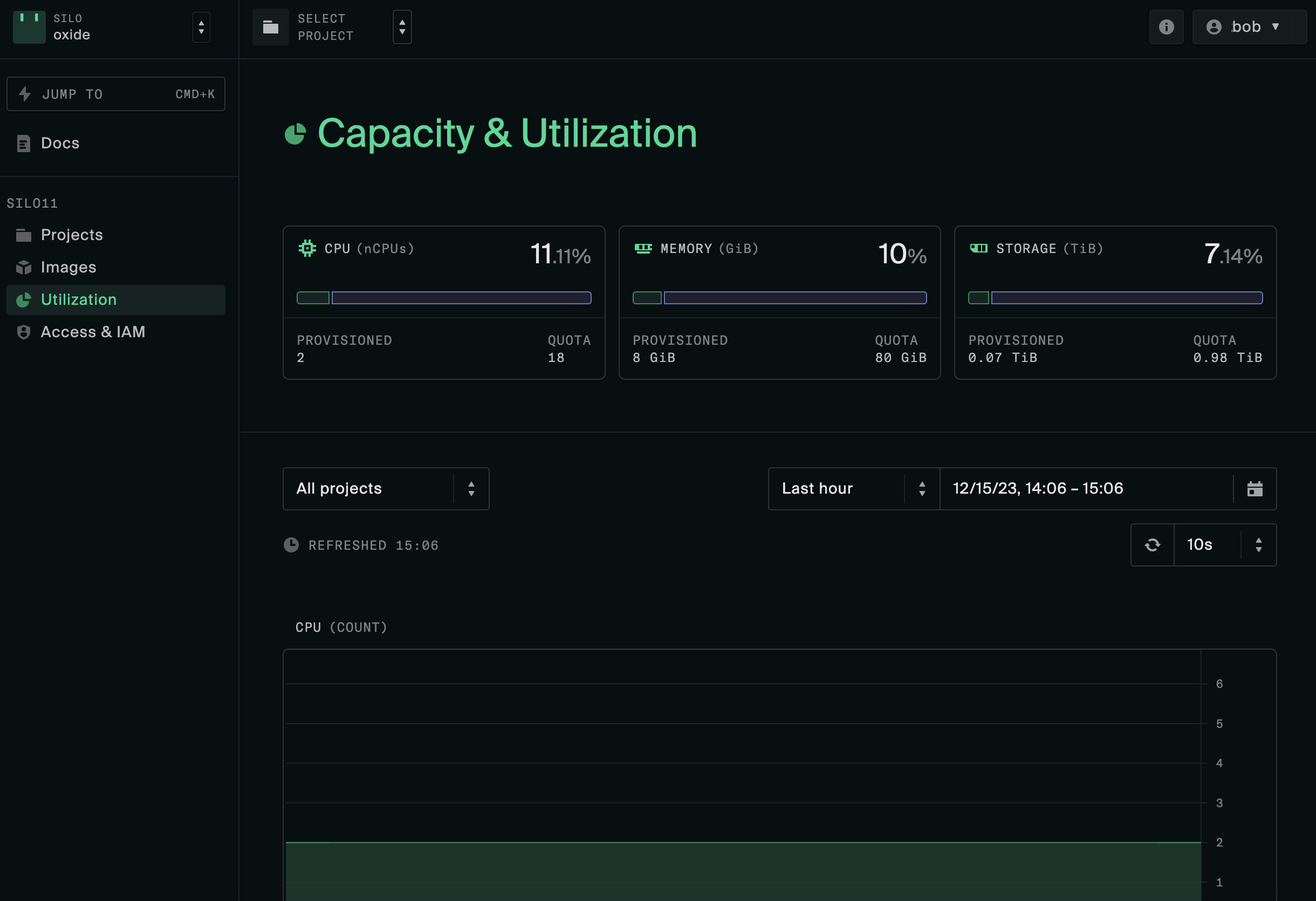
When users attempt to provision more resources than permitted by quotas or IP pools, they will receive an InsufficientCapacity error. Silo admins can request allocation increases from fleet admins, or advise users to free up resources.
Project Admins manage resources and team access within a single project, with the ability to:
View and manage project-level resources, including instances, disks, networks, and VPCs
Assign collaborator and viewer roles to users within the project
Modify the project IAM policy
Collaborator capabilities
Silo Collaborators have read/write access to all resources within a silo’s projects, with the ability to:
Create, start, and stop instances within any project in the silo.
Create and manage disks, snapshots, and virtual networks.
Modify project-specific resources and network configurations.
Project Collaborators manage resources within a specific project, with the ability to:
Create, start, and stop instances.
Create and manage project-specific disks, snapshots, and networks.
Viewer capabilities
Fleet Viewers have global, read-only access across the entire Oxide rack, with the ability to:
View the list of all silos and projects.
View resource usage, capacity, and configuration details.
Audit IAM policies and role bindings at the fleet, silo, and project levels.
Access global telemetry, health checks, and logs.
Silo Viewers have read-only access within a specific silo, with the ability to:
View the list of all projects within the silo.
View configuration, quotas, and capacity utilization for the silo.
Project Viewers have read-only access within a specific project, with the ability to:
View project-level resources such as instances, disks, and networks.